Extension · Chrome, Edge and Safari
From the browser to your library, no copy and paste
You're reading a report and want to save it with a summary, quote a paragraph into the project note or keep the author as a contact. The extension sends it to Dome, on your computer.
Capture · local connection

Resources · notes · people

Browser extension
Save an idea.
Selected text
An idea you want to remember.
Keep the link to the source.
Your library
Page and selection
On your computer
Flow illustration
View real Dome captures 01
What it does
-
Save the page
Capture the link in your chosen project and ask Many for a summary when you need one.
-
Notes with quotes
Select text and add it to a note with its quote and source. Edit Markdown and recover drafts within the panel.
-
Contacts from profiles
Detects profiles and person data on the page. You review name, role and email before saving.
Connect it to Dome
-
Install the extension
From your browser's store: Chrome Web Store, Edge Add-ons or the App Store for Safari.
-
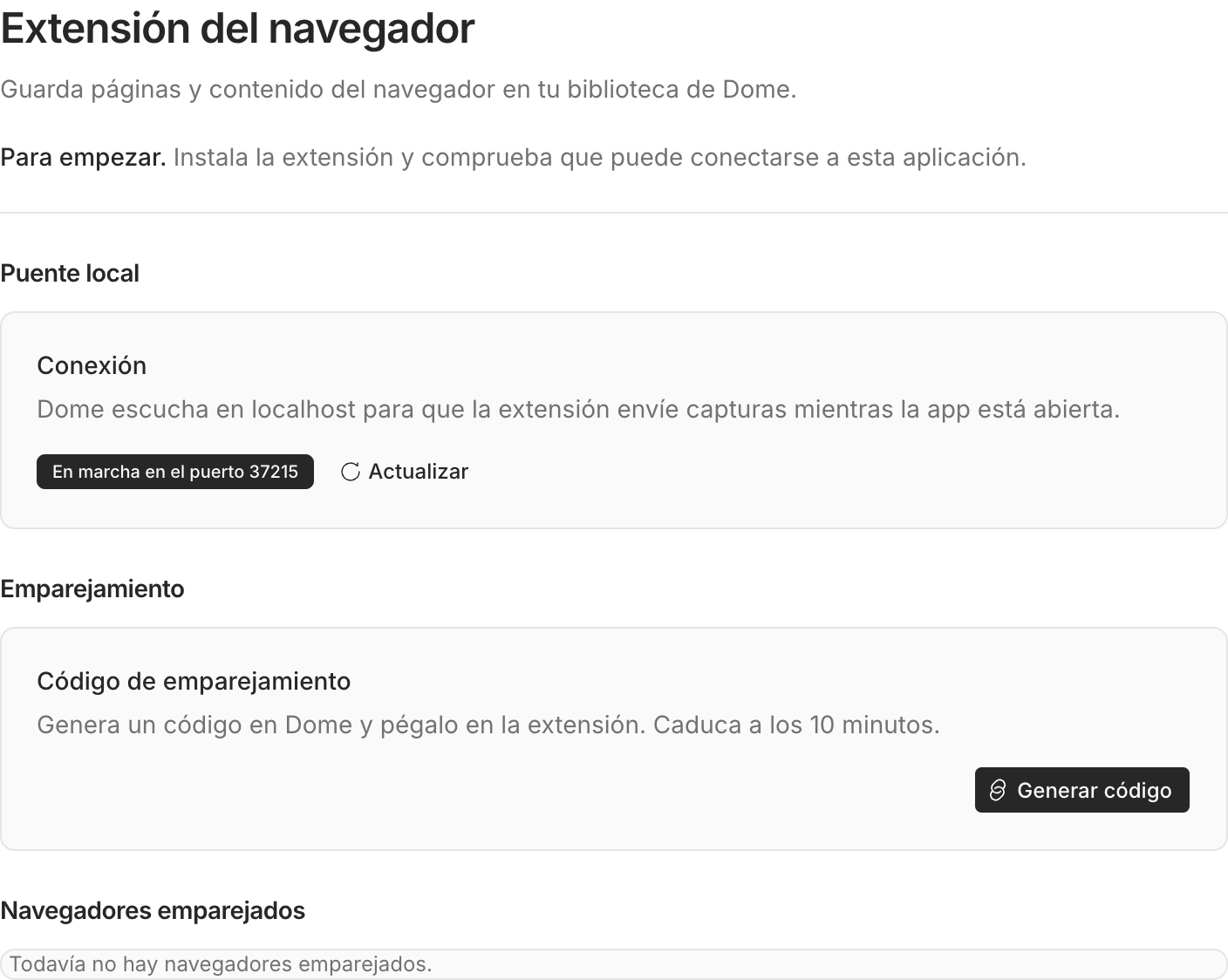
Generate a code in Dome
In Dome: Settings → Browser extension → Generate code. It expires after 10 minutes.
-
Paste it in the panel
Click the Dome icon in the browser and paste the code. Done.
It only talks to your computer
The panel connects to Dome on your computer using a paired token. Many actions on the page require review; your configured AI provider may receive the context needed to respond.
What you need
- A recent version of Chrome, Edge or Safari.
- Dome for desktop open on the same computer.
Frequently asked questions
Does it work with Dome closed?
No. The extension saves straight into your local library, so Dome has to be open. The panel tells you if it can't find it.
Why does it ask permission for a site?
It only asks for a site when you capture there, and you can remove it in the browser settings.
Does Many use my data for anything else?
Many uses the AI provider you set up in Dome, same as on the desktop. The extension adds no service in between.
What about Firefox?
The code already runs in Firefox; the listing in its store will come later.
Read in the browser. Keep it in Dome.
Install Dome, add the extension and pair with an eight-character code.