Write, translate and publish Markdown to your Astro site from Dome.
Dome CMS
From draft to your website.
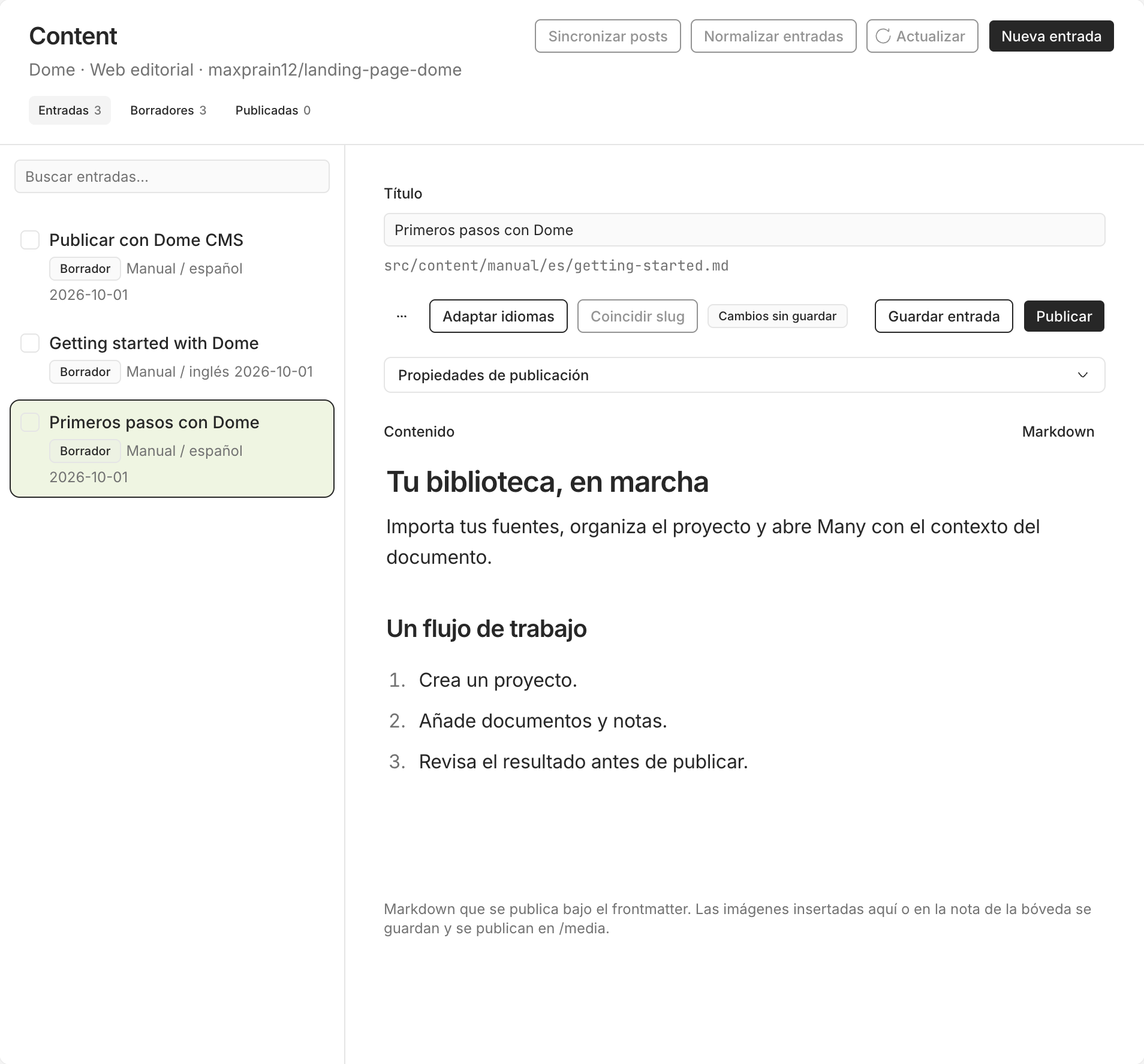
getting-started.mdDraft
#
Your library, ready.
1.Gather your sources.
2.Organize your ideas.
3.Prepare what you want to share.
ES / ENMarkdown
Publishing
GitHubAstro
On your website
Review the change before publishing.
Two languages. One piece.
Flow illustration
Markdown, languages and reviewed publishing. Flow illustration; original captures are below.View real Dome captures 03
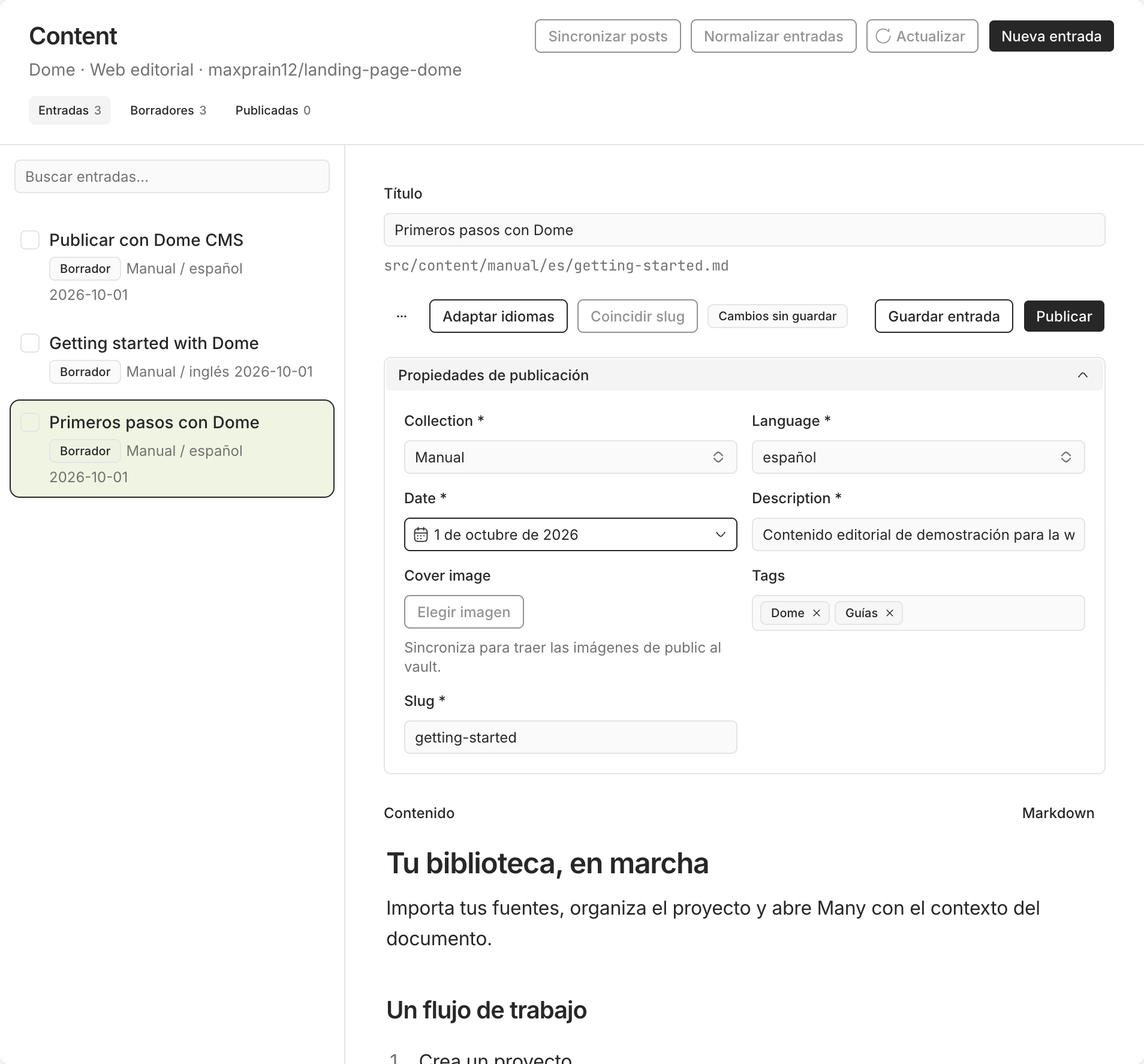
Markdown editorCollections and languagesPublishing properties
Your publishing workflow
Markdown
Dome CMS
GitHub
Astro
About this add-on
Use the shared editor, organize collections and languages, and manage images. Sync with GitHub and prepare individual or batch publications; publishing requires approval. Many can help with drafts and translations.
Use cases
01
Publish manuals and articles to Astro
Install in Dome
Open this entry in Dome and review requirements and permissions.
Confirm Install or Update in Desktop.
Configure the add-on using the manual on this page.
Dome opens the entry for review and installation. If you use an older version, update Desktop or find the add-on in its catalog.
User guide
Dome CMS manual
Manage Markdown, languages and images and publish to your Astro repository.
Requirements
Dome CMS installed and permissions reviewed.
Astro repository with Markdown collections and a GitHub connection with write access.
Steps
Install Dome CMS from Add-ons and configure it in Settings → Plugins.
Add the site, its vault, owner/repository, branch and public URL. Detect structure and review collection/language rules and link format.
Create an entry with title, collection, language, description, date and slug. Write the Markdown body and add images from the CMS.
Use Adapt languages or Update translations when needed. Review each draft; translation does not publish.
Prepare publication and review the path, content and commit. Publish only after approving the operation. Sync posts retrieves remote content again.
Expected result
Publication writes <slug>.md in the configured folder. If hosting deploys on commit, that change starts its build.
Configure the Dome website
Use the maxprain12/landing-page-dome repository and the public URL https://dome.dowi.es. To test editing and prepare a commit, select a test branch in the repository. Review the result before publishing to main.
Collection/language rule
Markdown folder
blog/es
src/content/blog/es
blog/en
src/content/blog/en
manual/es
src/content/manual/es
manual/en
src/content/manual/en
Choose Spanish as the default language and Prefix only other languages: routes are /blog/slug, /manual/slug, /en/blog/slug and /en/manual/slug. CMS, Extension and Companion manuals appear within their detail pages: editing those Markdown files updates the embedded section, and their old URLs redirect to it.
Keep title, date, description, optional cover, tags and slug. Inserted images are stored in the vault and published to public/media/<slug>/, accessible at /media/<slug>/. Feature pages and the catalog remain structured repository content.
Use Sync posts to retrieve files from the selected branch, edit a draft and prepare publication to check its path and commit. Publishing requires your review; synchronization and translation do not publish automatically. The blog stays empty until you publish a new entry.
If something fails
If a collection/language rule is missing, add it before preparing. If the branch changes during review, prepare again against the new revision. Publication failure preserves the local note.